Employees Clocked In
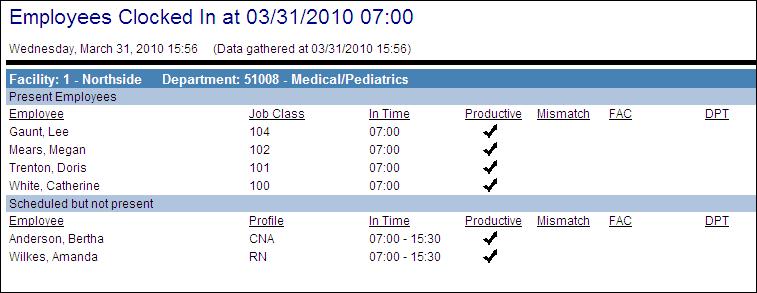
This report lists the employees who were clocked into the system or scheduled to be present in the selected organization unit at the date and time entered.
Note:
This report is only available when ActiveRoster is purchased and requires AR Application Indicator System Standard 2 to be set to either S or L (which enables ActiveRoster and determines from where the clocking data is loaded).
The report headings display the organization unit code and description. The report is broken down by Present Employees and Scheduled But Not Present employees
Report fields list the employee name, job class (or profile if employee is not present), phone number, in time (actual for present employees, scheduled hours for those not present), whether the time is considered Productive, whether there is a mismatch between scheduled and clocking labor distributions and the facility (if unit labor distributions are included).
Note:
Employees, organization units, job classes, and special codes included in this report must be previously set up to be monitored. For more information, see ActiveRoster Administrator Guide.
Report parameters include the following options:
-
Organization unit or Schedule Group: Select the proper option button to either search for results by organization unit or by schedule group. Enter the values in the fields.
-
When Start Date: The calendar date to be included in the report. Any employee schedules that overlap the point in time specified in the When Start Date/ When Start Time fields.
Note:
Employee schedules may include those that began on the day before the date entered in this field, if that schedule is still a current schedule in the entered date and time. For example, if night shift employees work 23:00 April 2 to 07:30 April 3, the employees shift that began on April 2 is still current at 7:00 am on April 3.
-
When Start Time: The time on the When Start Date that should be included in the report.
-
Show Home Phone: Indicate whether to display the employees' home phone numbers on the report (yes/no).
-
Home Employees Only: Indicate whether to display only employees whose Home labor distribution is included in the report (yes) or to also include non-home employees who are working in the labor distribution (no).
-
Show <Leaf> Employees in <Branch>: Select whether to include employees whose home organization unit is at the Leaf level, such as unit, if the parent Branch level organization unit, such as department, is selected.
-
When this parameter is set to No, employees whose Home is at the leaf level are not considered a Home employee at the branch level. They are shown on the report at the leaf level.
-
When this parameter is set to Yes, employees whose Home is at the leaf level are now considered a Home employee at the branch. They are shown on the report at the parent branch level that is associated with the employees <leaf> level.
-