Cost
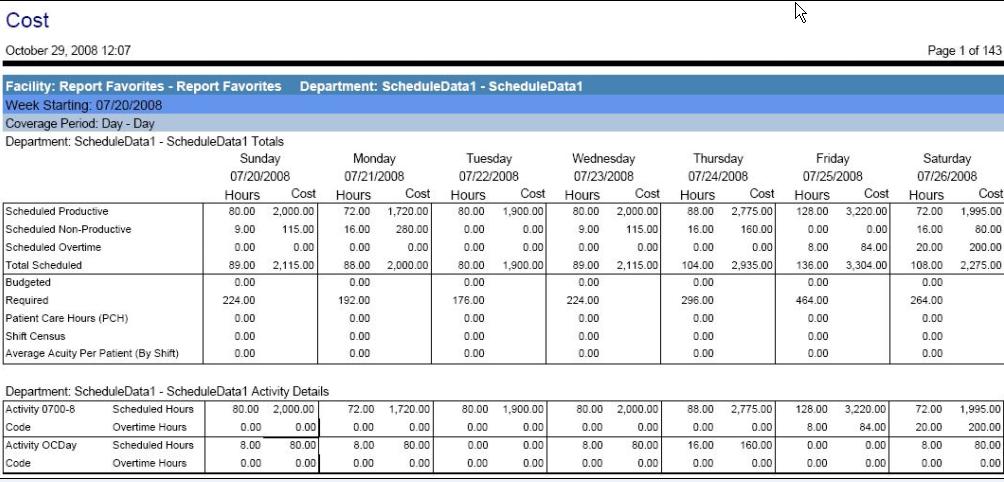
This report determines the cost of scheduled hours for the entered date range and organization unit/schedule group. The cost calculations are based on the Employee's Labor Distribution Pay Rate value, Activity Code Wage Differentials and on a percentage of the employees Base Rate for Overtime hours. The budgeted cost is calculated from an Average wage that is determined for each profile within the system.
Note:
No actual hours are taken into account for this report.
Depending on the parameter selected, the report is broken down by day, week or month and includes the following information, first by organization unit and then broken down by job class.
-
Scheduled productive: The total hours scheduled from activity codes that are coded to be productive and accumulate toward scheduled hours totals.
-
Scheduled non-productive: The total hours scheduled from activity codes that are coded to be productive and accumulate toward scheduled hours totals.
-
Scheduled overtime: The total scheduled hours projected to be overtime hours.
-
Total scheduled: Total of productive, non-productive and overtime hours.
-
Budgeted: Total hours calculated from the default staffing template for the organization unit.
-
Required: Total hours calculated from the staffing plan for the organization unit.
-
Patient Care Hours (PCH): Required hours as calculated by a third-party patient classification system.
-
Shift Census: Number of patients for the coverage period.
-
Average Acuity Per Patient (By Shift): Average patient care hours required.
Report parameters include the following options:
-
Organization Unit: Select the Organization Unit option button and then indicate the organization units to be included in this report.
-
Schedule Group: Select the Schedule Group option button and then select the schedule group to include in this report.
-
Employee: To run this report for a single employee, click o the icon to the left of the field to open a screen to search for an employee. Leave this field blank to include all employees in the organization unit.
-
Job Class: To run this report for a single job class, click on the icon to the left of the field to open a screen to search for a job class. Leave this field blank to include all employees in the organization unit.
-
Coverage Set: Select the coverage set from the field look up values to determine how to break down the information by coverage period (shift). If this field is left blank, the coverage period assigned to this organization unit will be applied.
-
Coverage Period: Select a single coverage period to include in this report. A coverage set must be selected in the Coverage Set field in order for values to be available in the field look up values.
-
Start Date: The first date of the range to include in this report.
-
End Date: The last date of the range to include in this report.
-
Report Type: Indicate whether to include Weekly Details (broken down by week, showing daily totals) Weekly Summary (weekly totals), Monthly Summary (monthly hours and cost totals) or Yearly Summary (Yearly hours and costs).